


Introducing Picsart Animator!
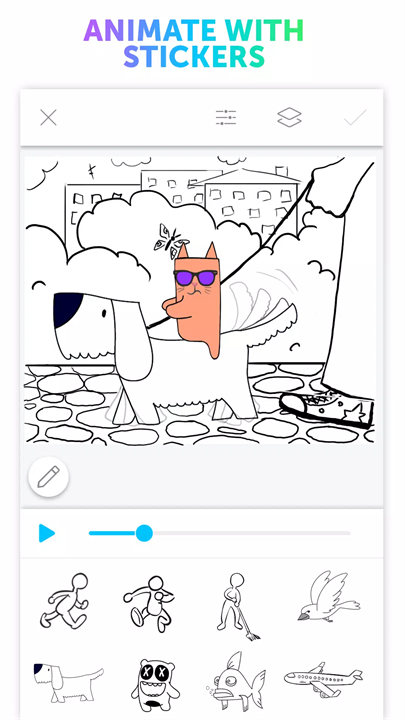
PicsArt Animator, developed by PicsArt, Inc., is a mobile app designed for creating animations and GIFs. It allows users to produce frame-by-frame animations, add special effects, and enhance their projects with various tools. The app is user-friendly and caters to both beginners and more experienced animators, enabling them to create engaging and dynamic visual content.
Features:
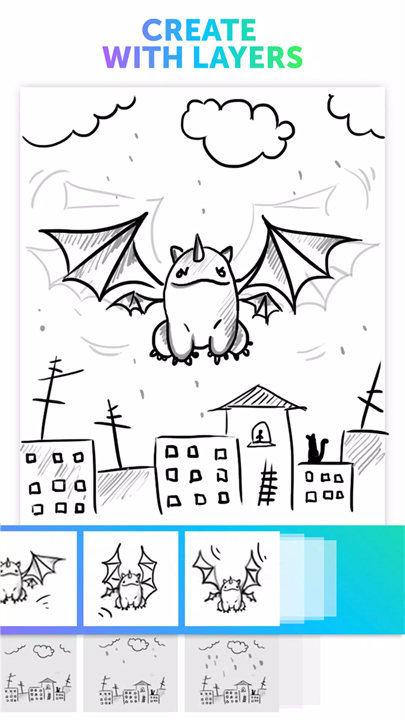
1. Frame-by-Frame Animation: Users can create animations by designing and editing each frame individually, giving them full control over the motion and flow of their projects.
2. Drawing Tools: The app provides a range of drawing tools, including brushes, colors, and shapes, to help users design their animations from scratch or enhance existing artwork.
3. Animation Effects: PicsArt Animator includes various effects and transition options, allowing users to add motion blur, easing, and other visual enhancements to their animations.
4. Onion Skinning: This feature lets users see previous and next frames while working on a current frame, facilitating smoother transitions and more precise animations.
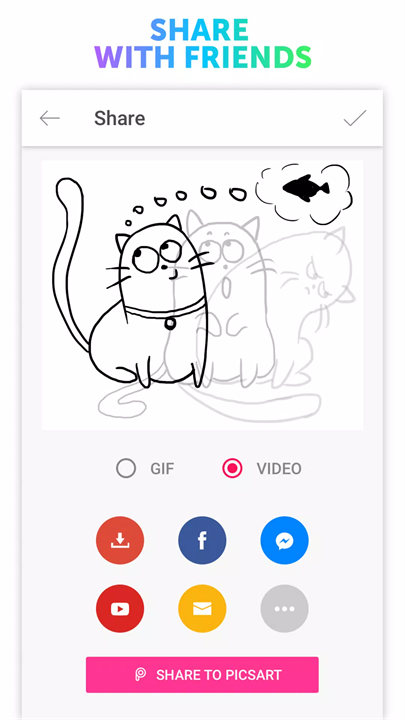
5. Export and Sharing: Users can export their finished animations as videos or GIFs and share them directly to social media platforms or save them to their device for easy distribution.
Top Five FAQs on Picsart Animator:
1. How do I start creating an animation in PicsArt Animator?
- To start an animation, open the app and tap the "+" button to create a new project. Choose the frame size and start designing your first frame. Use the drawing tools and animation features to add subsequent frames and build your animation sequence.
2. What is onion skinning and how do I use it?
- Onion skinning is a feature that shows the previous and next frames as semi-transparent overlays, helping you to align and refine your current frame. To use it, enable the onion skinning option in the app’s settings or toolbar, which will then display the overlay during your editing.
3. Can I import images or drawings into PicsArt Animator?
- Yes, you can import images or existing drawings into the app. Tap the import button to add files from your device, which you can then use as part of your animation or as a reference for creating new frames.
4. How do I add special effects to my animations?
- To add effects, select the frame or frames you want to modify and access the effects menu. Choose from the available effects and transitions, such as motion blur or easing, and apply them to enhance your animation’s visual appeal.
5. How can I export and share my finished animations?
- Once your animation is complete, tap the export button to save it as a video or GIF file. You can then share it directly to social media platforms or save it to your device’s gallery. The app provides options for exporting in different resolutions and formats.
/
What's New in the Latest Version 1.3.2
Last updated on Oct 16, 2023
- Minor bug fixes and improvements. Install or update to the newest version to check it out!






Ratings and reviews
There are no reviews yet. Be the first one to write one.