

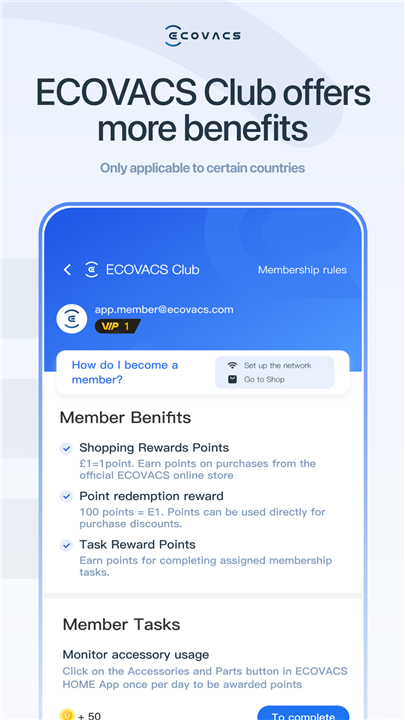
ECOVACS HOME
Your Robot’s New Best Friend
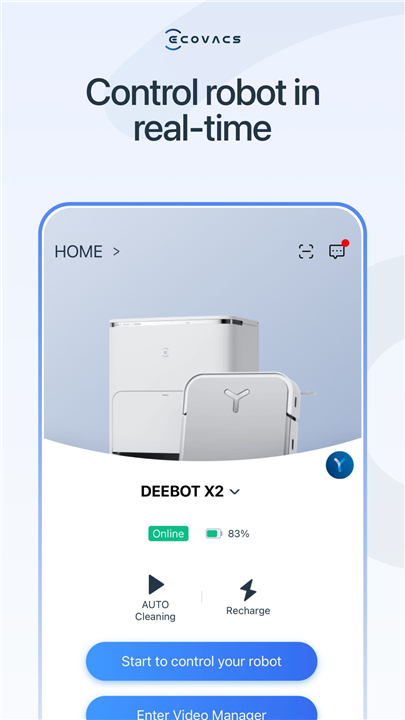
• The ECOVACS HOME app has arrived, and it’s here to make sure your DEEBOT works harder than you do.
• Whether you’re on the couch, at the office, or halfway around the world, you can boss your robot around with a tap (or a swipe).
Basic Robot Wrangling
• Start, pause, or stop cleaning — because sometimes you need a break, and so does your DEEBOT.
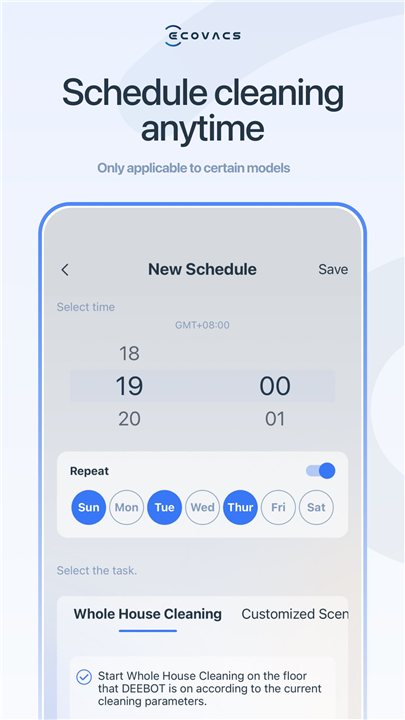
• Set a cleaning schedule so you’ll never “forget” to vacuum again.
• Adjust suction power, toggle voice reports, and set Do-Not-Disturb hours (your robot respects boundaries).
• Get instant notifications so you’re always in the loop.
• Share control with friends or family — but only if you trust them not to schedule 3 a.m. cleanings.
• Keep your DEEBOT up to date with the latest software and firmware.
• Access manuals, tutorials, FAQs, and customer service without digging through drawers.
Map Magic – For Smart Navi™ Models
• Draw invisible lines with Virtual Boundaries™ to keep your robot out of the cat’s favorite hiding spot.
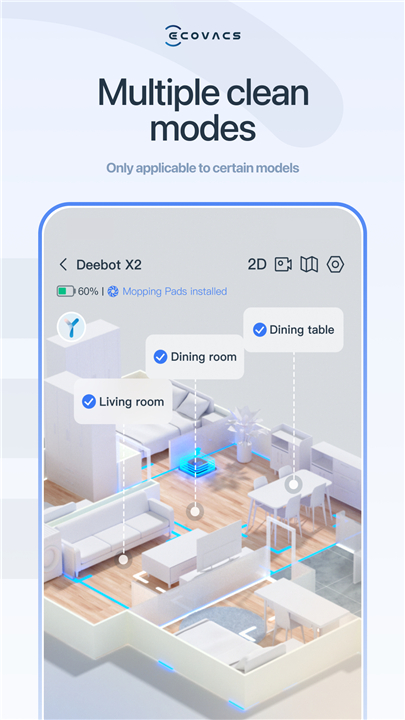
• Target specific rooms or areas with Custom Cleaning.
• Check real-time stats: see where your DEEBOT’s been and how long it’s worked.
• Control water flow for mopping models — because not all floors like a flood.
App Permissions – What We Ask For (Politely)
Your phone will need to grant some permissions to unlock all features.
• Location: Finds nearby devices and helps with Wi-Fi setup.
• Camera: Scans QR codes to connect or share your robot.
• Photos/Videos: Change profile pics or send feedback images to customer service.
• Microphone: For talking to customer service or managing robot video.
• Bluetooth/Nearby Devices: Connect via Bluetooth and set up your DEEBOT.
• WLAN/Local Network: Hook up to your robot’s Wi-Fi hotspot during setup.
• Notifications: Keep you posted on robot activity.
• Music/Audio: Audio and video chat for support.
Smart Home Integration
• Boss your DEEBOT around with Amazon Alexa or Google Home — available in select countries.
Tech Requirements
• Wi-Fi (2.4 GHz or 2.4/5 GHz mixed)
• Android 4.4 or later
• A desire to never vacuum manually again
Need Help?
• Visit ecovacs.com to learn more or contact customer service.
FAQ
Q: How do I connect my DEEBOT to the ECOVACS HOME app?
A: First, make sure your phone is on the same 2.4 GHz Wi-Fi network you plan to use for the robot. Open the ECOVACS HOME app, sign in or create an account, then tap the “+” icon to add a new device. The app will prompt you to scan the QR code located on your DEEBOT’s undercarriage or packaging. Once scanned, follow the on-screen instructions to enter your network credentials, and within moments you’ll see your robot appear in the device list, ready for action.
Q: What technical requirements are needed to run ECOVACS HOME?
A: ECOVACS HOME supports Android devices running version 4.4 or later, and iOS devices on version 9.0 or higher. You need at least a 2.4 GHz Wi-Fi connection—if your router broadcasts a mixed 2.4/5 GHz SSID, that works as well. Make sure your smartphone’s Bluetooth and location services are enabled during initial setup to discover nearby devices and complete the Wi-Fi pairing.
Q: How can I schedule recurring cleaning sessions?
A: In the app’s main menu, choose “Schedule,” then tap “Add.” You can select days of the week, start times, and specific cleaning modes. Once saved, your DEEBOT will automatically launch at those times, even if your phone is asleep. If you need to make a change, simply return to the Schedule screen, edit or delete the task, and your robot will follow the revised plan.
Version History
v3.9.1——22 Dec 2025
ECOVACS HOME allows you to control your ECOVACS products while at home or away Download the latest version of ECOVACS HOME to enjoy new features and updates immediately!
*3.9.1
-Bug fixes and enhancements
What's your most wanted feature? Tell us at:
app.pm@ecovacs.com
*3.9.0
1. Agent Mode and Yiko: Separate preference settings entry points for independent operation
2. Optimized interaction when scanning QR codes without permissions
3. Added personalized atmosphere features to Home and Control pages, with toggle switches in Personal Settings
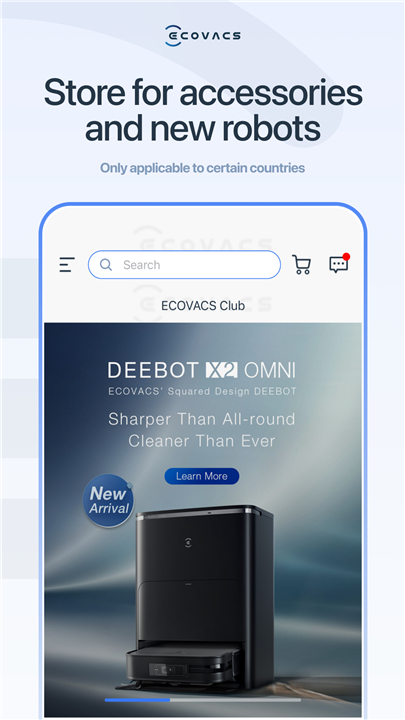
4. Enhanced overseas store content
*3.8.0
1、Add a copy button to the network configuration failure page to quickly copy the corresponding error code and device model.
2、Fixed display errors for product prices and order totals in international orders








Ratings and reviews
There are no reviews yet. Be the first one to write one.