

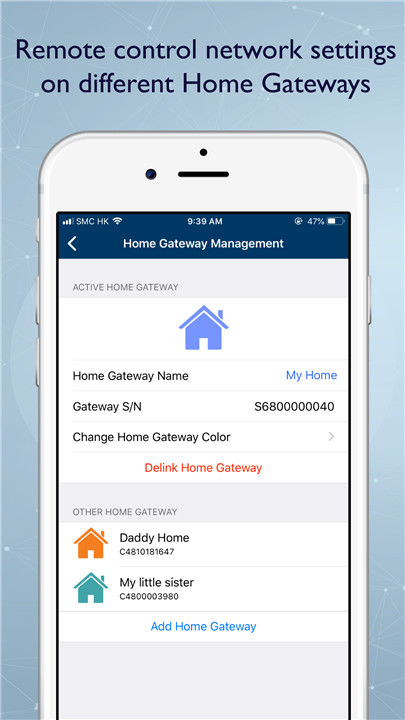
The Wi-Fi Concierge App is an intuitive tool crafted to simplify the configuration and management of your HKBN Home Gateway, giving you the freedom to do so from anywhere, at any time. This app boasts a robust array of features that empower you to take full command of your home network, enhancing both its functionality and security. Let’s delve deeper into what this app has to offer:
+ Dashboard Overview
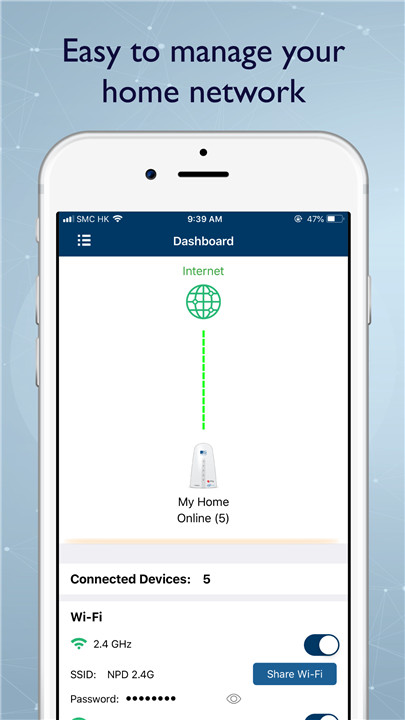
The Dashboard Overview presents a concise snapshot of your network’s current state. It showcases essential details such as your internet connection status, network speed, and the number of devices connected. This feature enables you to keep an eye on your network’s performance effortlessly and swiftly pinpoint any potential issues.
+ WAN Settings
In the WAN (Wide Area Network) Settings section, you can tailor your internet connection. Here, you can select your connection type (like PPPoE, DHCP, or Static IP), input your ISP (Internet Service Provider) credentials, and adjust other WAN-related configurations. This ensures your home gateway is properly set up for internet access.
+ LAN Settings
The LAN (Local Area Network) Settings section is where you can manage your home’s internal network. This includes:
- LAN IP Settings: Define the IP address range for your local network.
- DHCP Server Settings: Set up the DHCP (Dynamic Host Configuration Protocol) server to automatically assign IP addresses to devices on your network. You can also designate static IP addresses for specific devices if necessary.
+ Wireless Configuration
The Wireless Configuration section allows you to oversee your Wi-Fi settings. This includes:
- SSID (Network Name): Designate the name of your Wi-Fi network.
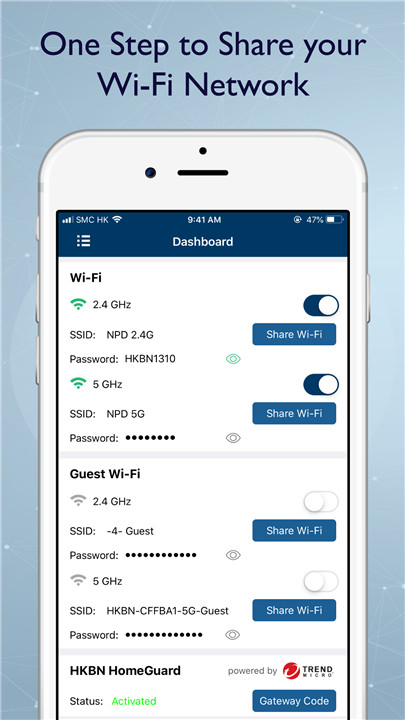
- Security Settings: Select the security protocol (such as WPA2 or WPA3) and create a strong password to safeguard your network from unauthorized access.
- Channel and Bandwidth: Enhance your Wi-Fi performance by choosing the optimal channel and bandwidth settings.
+ Guest Network
With the Guest Network feature, you can establish a distinct Wi-Fi network specifically for your visitors. This keeps your primary network secure while still allowing guests to access the internet. You have the option to create a unique SSID and password for this network, and you can even set time limits on their access.
+ Connected Client
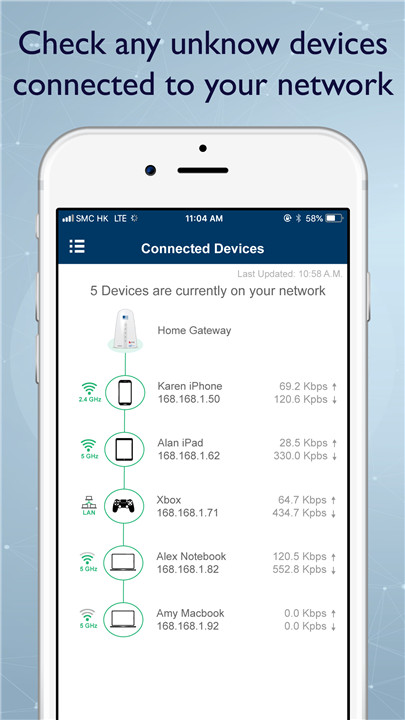
The Connected Client section displays all devices that are currently linked to your network. You can access detailed information for each device, including its name, IP address, and MAC address. This feature is essential for effectively managing and monitoring the devices connected to your network.
+ Advanced Settings
The Advanced Settings area caters to more experienced users and includes:
- Virtual Server/Port Forwarding: Create port forwarding rules to enable specific traffic types to reach devices on your network. This is particularly useful for hosting servers or running applications that need external access.
- DMZ (Demilitarized Zone): Set up a DMZ to allow a single device to connect directly to the internet, bypassing the firewall. This is commonly used for gaming or hosting web servers.
+ Network Tools
The Network Tools section offers a variety of diagnostic tools to assist you in troubleshooting network problems:
- Ping: Check the connectivity to a specific IP address or domain.
- Trace Route Test: Follow the path that data takes from your device to its destination, helping you pinpoint any potential bottlenecks or issues within the network.
By utilizing the Wi-Fi Concierge App, you can effortlessly manage and enhance your home network, ensuring a smooth and secure internet experience for all your devices.
FAQ
Q: What is the Wi-Fi Concierge App?
A: The Wi-Fi Concierge App is an intuitive tool designed to simplify the configuration and management of your HKBN Home Gateway. It allows you to manage your home network from anywhere, at any time, enhancing both functionality and security.
Q: What information does the Dashboard Overview provide?
A: The Dashboard Overview provides a concise snapshot of your network’s current state, including your internet connection status, network speed, and the number of devices connected. This helps you monitor your network’s performance and quickly identify any issues.
Q: How do I configure my internet connection in the WAN Settings section?
A: In the WAN Settings section, you can select your connection type (PPPoE, DHCP, or Static IP), input your ISP credentials, and adjust other WAN-related configurations. This ensures your home gateway is properly set up for internet access.
-----------------
v3.43——2 Mar 2025
Manage home Wi-Fi anywhere Download the latest version of Wi-Fi Concierge 3.43 to enjoy new features and updates immediately!
bug fixes









Ratings and reviews
There are no reviews yet. Be the first one to write one.