

Rentman Mobile
Rental Management Made Simple
• Take control of your rental operation wherever you are.
• With Rentman Mobile, you can scan, book, and track equipment, keep your schedule organized, and access all the project details you need — right from your phone.
Fast & Easy Equipment Management
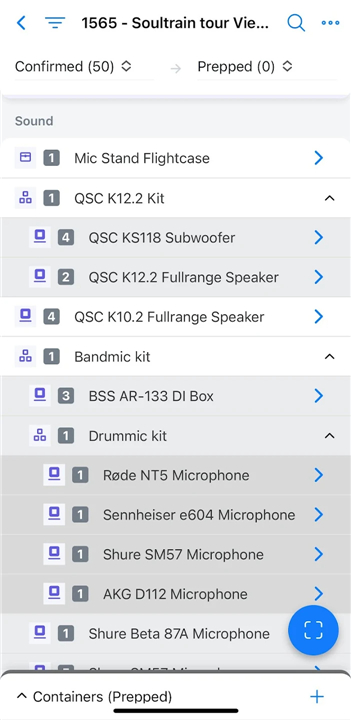
• Scan items using your smartphone camera or an Android Zebra scanner
• Support for both QR codes and barcodes
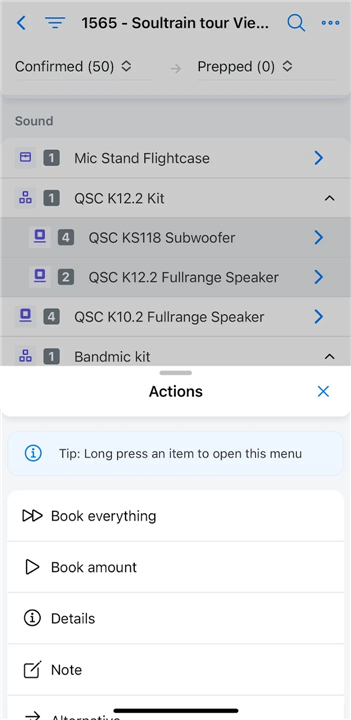
• Book equipment in or out instantly
• Handle alternatives and receive alerts for availability conflicts
• Add extra gear and ensure it’s billed correctly
• Process multiple packing slips at the same time as your team
• Combine packing lists into one streamlined document
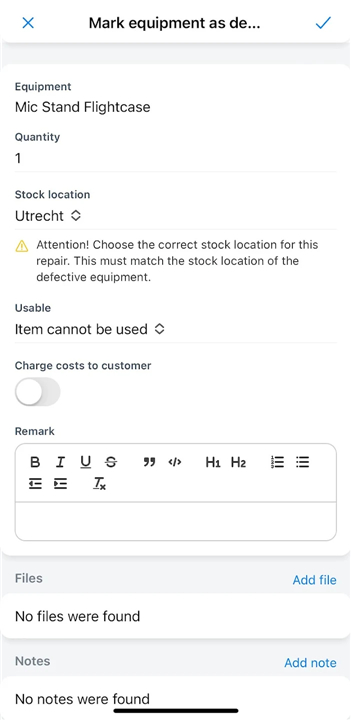
• Create, track, and review repairs with full history
• Check stock levels and detailed item information on the spot
Stay on Top of Your Work
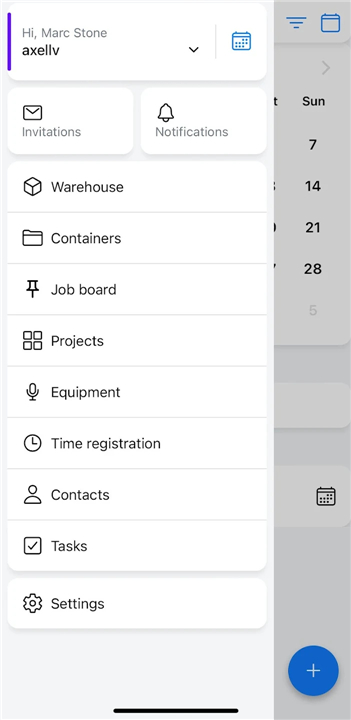
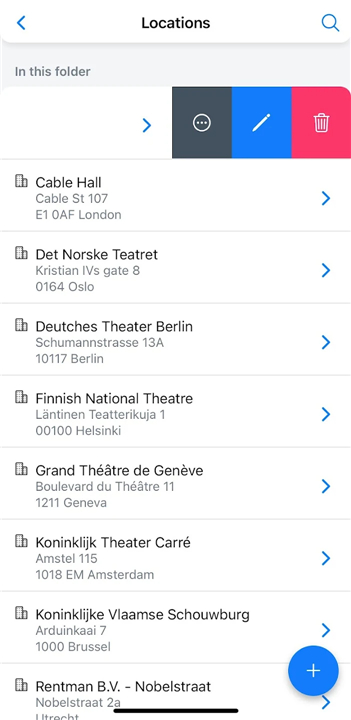
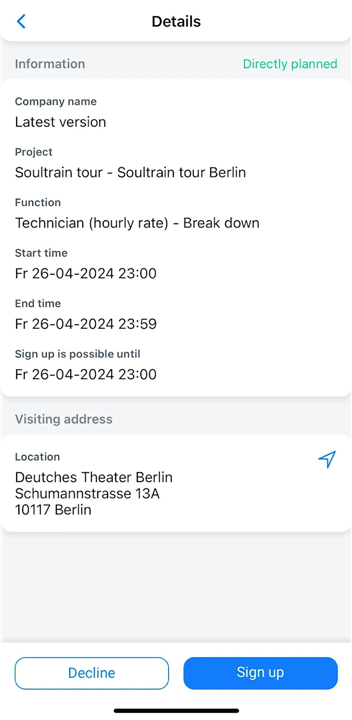
• Access and update your personal schedule anytime
• View project documents and key details wherever you are
• Confirm availability and accept job invitations instantly
• Find contact details without searching through emails
• Log repairs and report lost equipment directly in-app
• Track hours worked and submit time registrations
• Navigate to your next job with built-in Google Maps routing
Get Started Today
• A Rentman account is required to use the app.
• Not a user yet? Sign up for a 30-day free trial at https://rentman.io and experience how effortless rental management can be.
FAQ
Q: Which devices does Rentman Mobile support for scanning equipment?
A: Rentman Mobile works with your standard smartphone camera as well as dedicated Android Zebra scanners. Whether you prefer the convenience of your phone or the robustness of a professional scanner, you can quickly read both QR codes and barcodes to streamline check-in and check-out processes.
Q: Do I need an existing Rentman account to use the mobile app?
A: Yes, a Rentman account is required to access the mobile app. If you don’t yet have an account, you can sign up for a risk-free 30-day trial at https://rentman.io and discover how easy rental management can be.
Q: How do I scan items and what types of codes are supported?
A: When you launch the scanning tool in Rentman Mobile, you simply point your device’s camera or Zebra scanner at the code on the equipment. The app supports both QR codes and traditional barcodes, so you can adopt whichever labeling system works best for your warehouse.
Version History
v47.0.1——19 Jan 2026
Improve your rental management with Rentman. Download the latest version of Rentman Mobile to enjoy new features and updates immediately!
*47.0.1
Improved RFID scanner connectivity.
Repair costs created in Scan Return can be charged to the project when the item is returned from one.
You can now add QR codes manually, allowing a quick switch from camera scanning to manual input.
Resolved several bugs and issues
*45.0.6
Introducing file folders to organize project documentation. Automatic subproject folders, custom folders, confidentiality settings, and mobile app support.
Improved project cancellation flow to show an alert if crew or tasks are assigned instead of canceling.
Resolved several bugs and issues.
*43.0.6
Added RFID confirmation screen in the ‘Combinations’ module, displaying scanned tags for review before booking into the combination with the option to remove incorrect tags.
Improved scanning when items had multiple RFID tags or QR codes.
Resolved several bugs and issues.








Ratings and reviews
There are no reviews yet. Be the first one to write one.