

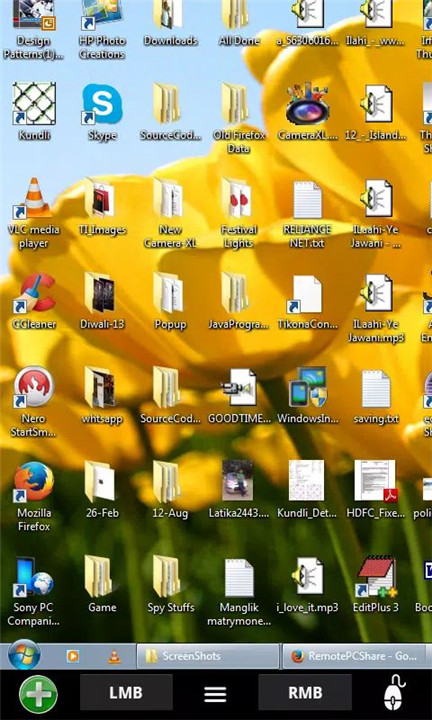
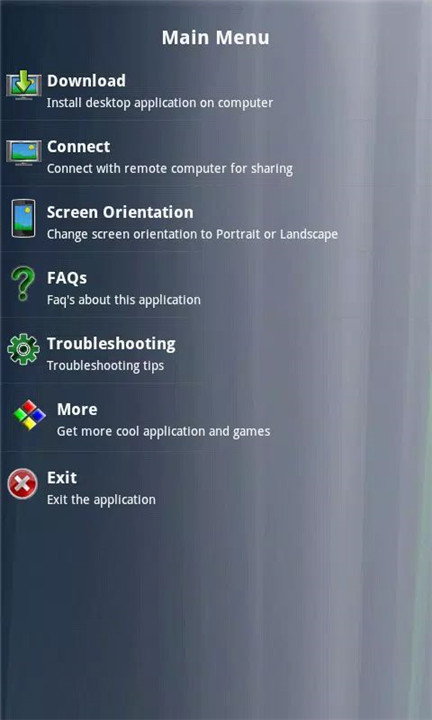
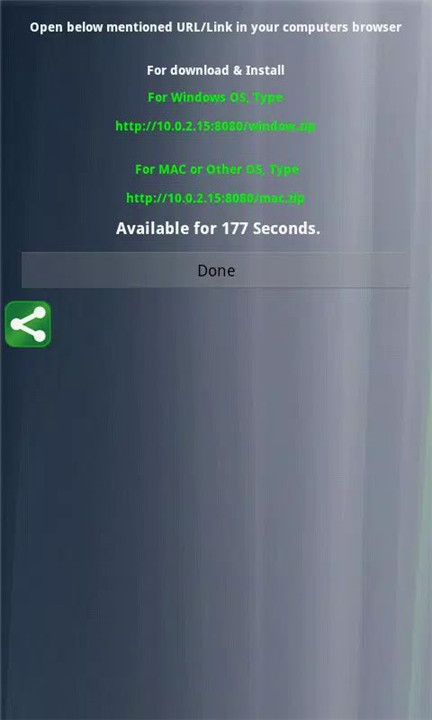
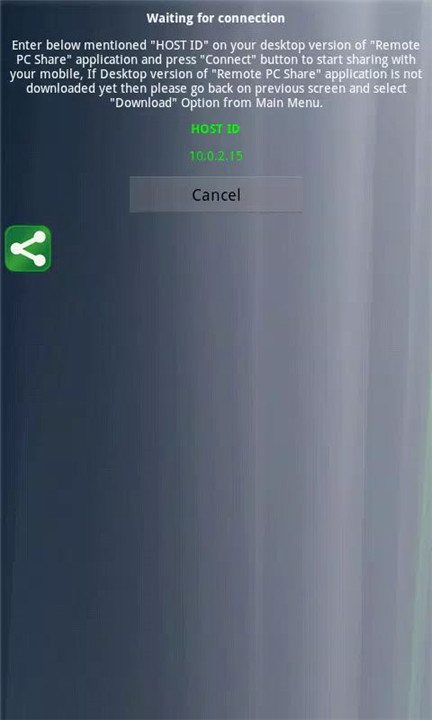
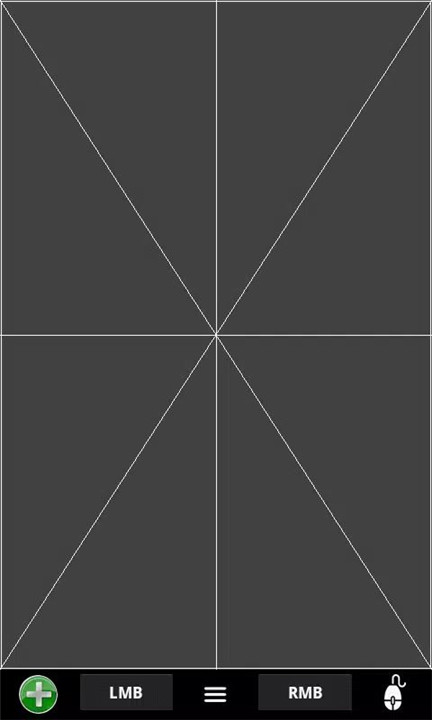
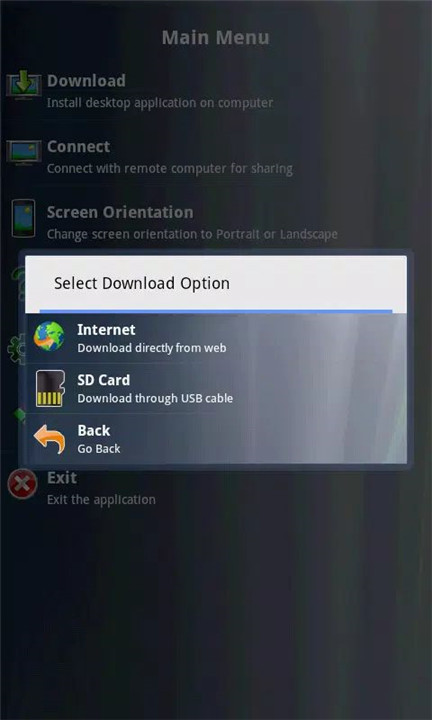
Remote PC Share is a versatile application designed to provide seamless access to your remote computer, no matter where you are in the world. With no need for login credentials and support for any GUI-based operating system, Remote PC Share allows for a smooth, hassle-free experience.
Remote Access Anywhere
Remote PC Share allows you to connect to a computer from any part of the globe, no login or password is required. All you need is an internet connection and your mobile device to gain access to your computer, whether it’s across the street or halfway around the world.
OS Agnostic
Unlike other remote access tools, Remote PC Share works with any GUI-based operating system, meaning you can connect to Windows, Mac, Linux, and more without worrying about compatibility issues. This makes it an excellent tool for cross-platform use.
Remote Mouse and Keyboard Control
You can control the mouse and type text on the remote computer, as if you were sitting right in front of it. This feature makes Remote PC Share a great tool for remote troubleshooting, presentations, or working on your computer from a distance.
Zoom and Navigation Settings
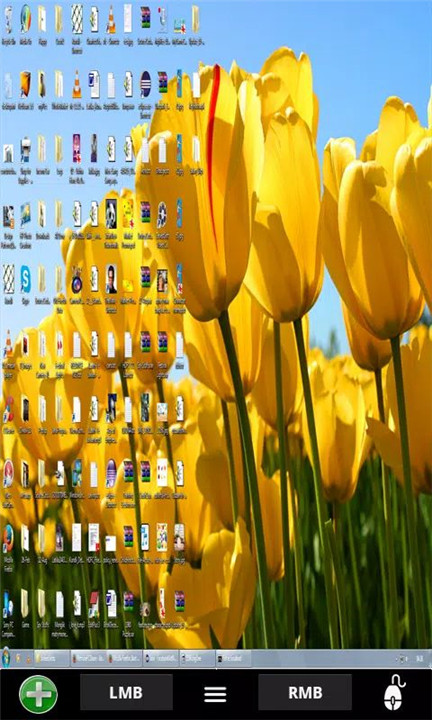
Adjust the zoom level of the remote screen directly from your mobile device for a more comfortable viewing experience. This feature allows you to focus on specific areas of the screen or make the content easier to read while navigating remotely.
Network and Screen Quality Customization
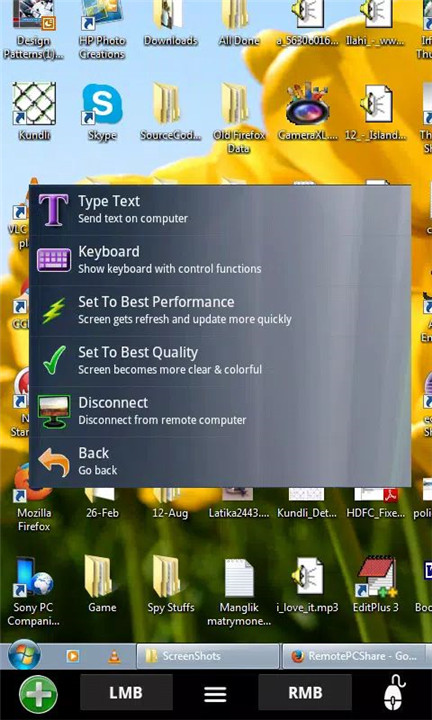
The app allows you to adjust network performance and screen quality to ensure smooth navigation, especially in low-bandwidth environments. You can tweak the settings based on your connection speed, ensuring a seamless experience even with slower networks.
Perfect for Presentations
Remote PC Share is ideal for giving presentations, allowing you to use your mobile device as a remote control to navigate slides or control media. You can focus on your audience while managing the content on your computer from anywhere in the room.
Ad-Free Version Available
For a more streamlined experience without ads, you can download the ad-free version, “Remote PC Share Pro,” for uninterrupted remote control functionality.
Support and Documentation
For any questions or issues, the app provides comprehensive support. You can contact the support team via email at support@mightylandapps.com. Additionally, a user manual and troubleshooting guide are available at the following resources:
http://remorepcshare.blogspot.in/
https://drive.google.com/file/d/0Byr68DctfSHyZEhkRENWcUdhMjg/view?usp=sharing
FAQs
1. How do I connect to a remote computer using Remote PC Share?
Simply open the app, and with an internet connection, you can remotely connect to your computer without the need for a login or password. Just ensure the computer has Java JDK 1.6 or higher installed.
2. Can I use Remote PC Share with any operating system?
Yes, Remote PC Share is compatible with any GUI-based operating system, including Windows, Mac, Linux, and others. There are no OS limitations for connectivity.
3. How can I zoom in on the remote screen?
You can easily adjust the zoom levels of the remote computer’s screen directly from your mobile device. This is useful for focusing on specific areas of the screen.
4. Can I use Remote PC Share for presentations?
Absolutely! The app is perfect for giving presentations, allowing you to remotely navigate slides and control your presentation from your mobile device.
5. How do I get the ad-free version?
To remove ads, you can download the “Remote PC Share Pro” version, which offers all the features without interruptions.
Version History
v1.15—10 Jul, 2016
1. Bug fixes.
2. Now app is movable to SDCard, so phone's internal memory can be saved.
v1.14—24 Apr, 2016
1. Display issue fixed for high resolution device and tablets.
2. Bug fixes.
v1.13—11 Dec, 2015
1. Preventing app to go in sleep mode while using the app bug fix.
2. Interstitial Ads removed on exiting the app.
3. Minor bug fixes







Ratings and reviews
There are no reviews yet. Be the first one to write one.