

Pie Launcher
Getting Started
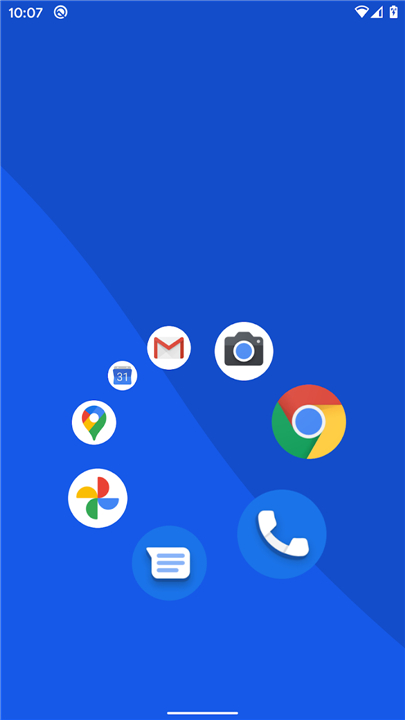
• Press and hold anywhere on the home screen to summon the pie‑menu interface.
• The circular menu expands outward, revealing slots for your favourite applications.
Launching Apps Quickly
• While the pie menu is visible, drag your finger toward the icon of the app you want to open and release.
• The selected app launches instantly, eliminating the need to search through the app drawer.
Accessing Less‑Used Applications
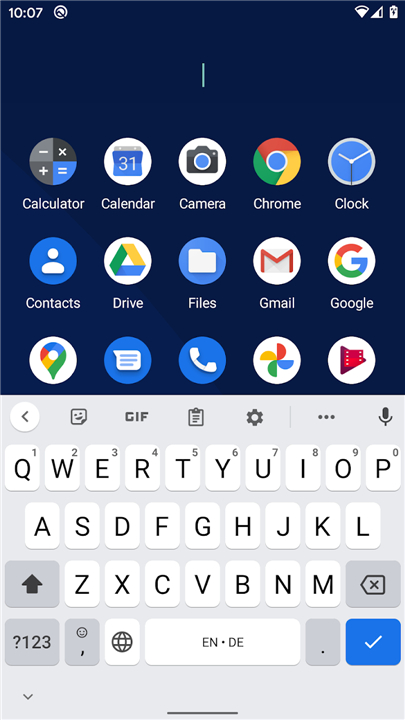
• Instead of swiping, simply tap the centre of the pie menu and begin typing the first one or two letters of the desired app’s name.
• A filtered list appears, allowing you to select the app with a single tap.
Customising the Pie Menu
• Long‑press any app icon shown in the menu to open the editor.
• Choose to arrange the menu with 4, 6, or 8 icons – the optimal layouts for easy thumb reach and visual clarity.
• Add, remove, or reorder icons, and assign shortcuts for specific actions (e.g., “Open in split view”).
Efficiency Through Muscle Memory
• After a short learning period, you can launch your most‑used apps without looking, relying on the consistent angular positions of the icons.
• This hands‑free style reduces visual distraction and speeds up repetitive tasks.
Rapid Retrieval of Infrequent Apps
• The typing shortcut gives immediate access to applications you rarely open, preventing the need to scroll through long app lists.
• Only a couple of keystrokes are required, making the process faster than traditional search functions.
Open‑Source Availability
• The entire project is freely available under an open‑source license.
• Source code, contribution guidelines, and issue tracking can be found at:
https://github.com/markusfisch/PieLauncher
• By integrating these features, Pie Launcher streamlines both everyday and occasional app access, turning your device into a more intuitive and efficient tool.
FAQ
Q: What is the quickest way to launch one of my favorite apps once the menu is open?
A: While you are still holding your finger down and the pie menu is visible, you should drag your finger toward the icon of the app you wish to open. Once your finger is over the correct icon, just release it, and the selected application will launch instantly without any need for further navigation.
Q: How can I find an application that I don’t use often enough to keep in the main circle?
A: For those less-frequent apps, you can tap the center of the pie menu instead of performing a swipe. This action opens a search interface where you can type the first one or two letters of the app's name, and a filtered list will immediately appear for you to select from.
Q: Is it possible to change which apps appear in the pie menu?
A: You can customize your selection at any time by performing a long-press on any app icon currently shown in the menu. This action opens the editor mode, where you are free to add new apps, remove ones you no longer need, or reorder them to better suit your preferences.
Version History
v1.28.0——17 Aug 2026
Home screen launcher that uses a dynamic pie menu instead of tables of icons. Download the latest version of Pie Launcher to enjoy new features and updates immediately!
*1.28.0
Add support for launching pinned shortcuts
Limit recent-apps gesture workaround to Android 14
*1.27.0
* Add frecency app sorting and circle swap option
* Preserve pie entries across app icon changes
* Fix going back for some version of Android
*1.26.5
Fix broken recent-apps overview for some Android versions











Ratings and reviews
There are no reviews yet. Be the first one to write one.